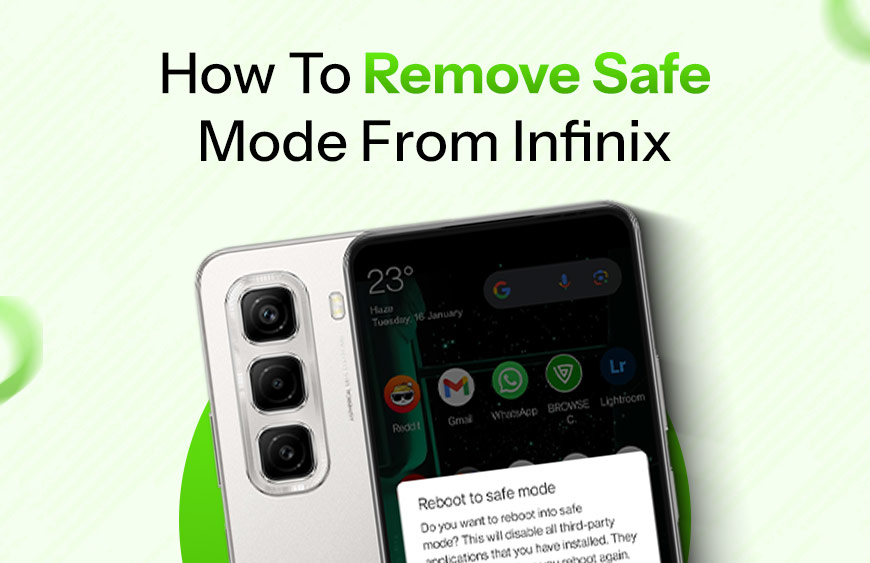
You unlock your infinix phone and suddenly half your apps are gone. No games. No social media. Only basic system apps showing on the screen. That’s when you realize your phone is stuck in Safe Mode. Don’t panic. It’s not a virus and your phone isn’t damaged. Safe Mode is actually a protection feature. It turns off third-party apps so you can fix problems easily. If you’re using an Infinix smartphone and facing this issue, you can remove Safe Mode in just a few minutes. Let Infinix.pk walk you through it step by step in simple words.
What Is Safe Mode on Infinix?
Safe Mode is a built-in Android feature. When it turns on, your phone runs only system apps. Any app you downloaded from Play Store stays disabled. This usually happens if:
- You accidentally press certain buttons while restarting
- A new app causes software conflict
- The system detects unusual behavior
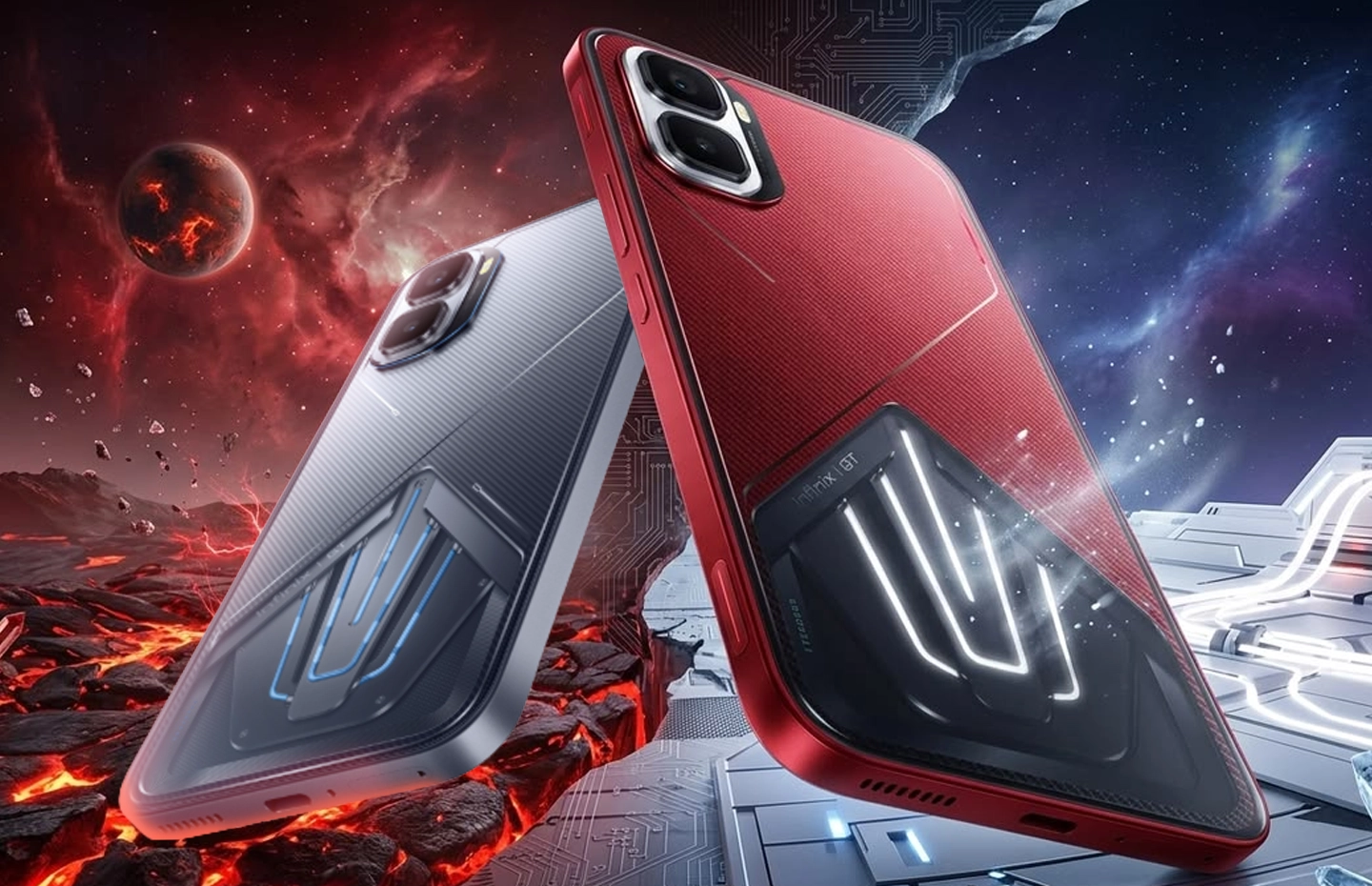
For example, users of Infinix GT 30 Pro sometimes see Safe Mode after a forced restart. It looks scary at first, but the fix is simple.
Method 1: Restart Your Phone Normally
Most of the time, a simple restart solves the issue. Press and hold the Power button. Tap Restart. Wait for the phone to turn off and on again. That’s it. After reboot, check the bottom corner of the screen. If the “Safe Mode” label is gone, your phone is back to normal. This works in many cases, especially when Safe Mode was triggered by mistake.
Method 2: Check Volume Buttons
If restarting doesn’t help, check your volume buttons. Sometimes Safe Mode stays active because a volume button is stuck or being pressed during startup.
- Turn off your phone completely.
- Remove the case if you use one.
- Make sure Volume Up and Volume Down buttons are not jammed.
- Now power it on again normally without pressing any volume key.
- This small detail fixes the problem for many users. It sounds basic, but it works.
Method 3: Remove Problematic Apps
Safe Mode often activates because of a recently installed app. Think about what you installed before the issue started. While in Safe Mode:
- Go to Settings
- Open Apps
- Find recently installed apps
- Uninstall suspicious or new apps
- After uninstalling, restart your device again.
Users of Infinix Zero 30 4G have reported that deleting a buggy launcher or cleaner app solved their Safe Mode problem instantly. Third-party apps sometimes conflict with system software. Removing them brings stability back.
Method 4: Factory Reset (Last Option)
If nothing works, a factory reset may be required. Use this only as a final solution because it deletes your data.
- Go to Settings
- Select System
- Tap Reset
- Choose Factory Data Reset
- Back up your data before doing this. After reset, Safe Mode should disappear completely.
How To Prevent Safe Mode in Future
Avoid installing unknown apps from unofficial sources. Keep your phone updated. Don’t press volume buttons while restarting. Small habits prevent big headaches.
Infinix phones are built for smooth daily use. Software is optimized to reduce glitches. Most Safe Mode cases happen due to accidental button presses or unstable apps, not because of hardware faults.
Final Words
Safe Mode looks confusing, but fixing it is easy. Restart first. Check buttons. Remove problematic apps. Use reset only if necessary. Infinix continues to deliver reliable smartphones that focus on performance and user comfort. If you’re planning to upgrade or want a fresh start with a new device, buy original Infinix smartphones directly from infinix.pk. You get official warranty, genuine products, nationwide delivery and access to laptops, accessories, smart TVs and much more.